
Back to Table of Contents |
 Add Staff below active staffDuplicate active staffDelete active staffExtract an orchestra part for active staffMerge another staff with active staffStart recordingRecord new rhythm for active staff melodyAutobar active staff (add barlines automatically)Autobeam active staff (beam notes as appropriate)Autostem active staff (set stem directions automatically)Autointerpret accidentals of active staff (may change notation but not sound)Transpose or transform notes of this staffSet staff transposition...Set staff appearance...Set relative volume for all or selected notes in active staff...Clear Spreader/Shrinker adjustments between all or selected itemsDefine voiceleading (change notes from one track to another)Show text control for active staff
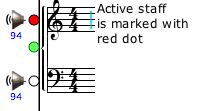
 Commands in the staff menu refer to the "active staff" - the one that currently has its circular "handle" filled in red, like below. A staff becomes the active staff if you use the arrow tool to click on its handle (the circle that would be filled in red), or any symbol it contains, or if you click a note directly into that staff. You can also change the currently active staff with the Up or Down arrow keys on the computer keyboard.
 Add Staff below active staff
Adds a new staff below the currently active one. The clef will be the clef most recently chosen, but you can change the clef by selecting it and choosing a different clef instead. Remember also that you can drag any staff up or down by its handle to change its position.
Duplicate active staffDuplicates the active staff and all its contents, placing it below the active staff.
Delete active staffDeletes the active staff and all its contents. This can be Undone with the Edit menu if you delete the staff by accident, but you must do that immediately before the "Undo" gets replaced by some other edit action.
Extract an orchestra part for active staffThis creates a new music window and places in it a copy of the contents of the active staff. It also combines any adjacent whole-measure rests, creating multiple rests as is customary in orchestra parts. The original staff is left untouched.
Merge another staff with active staff After choosing this command you'll be asked to click the mouse anywhere within the lines of the staff you want to merge with the active one. The contents of the other staff will then be copied into the active staff, combining with the notes already there. This is a good shortcut for creating a multitrack staff. For a good example, see any of the Bach Chorales in the Songworks music library - we created the keyboard reductions in those windows by merging the upper two and the lower two staves, first setting the note stems to opposite directions.
Start recording Begins recording in "real time" using the metronome. If the Autonotation Option "Record to
two staves" is on this command will read, "Start recording to active staff and the staff below it." The metronome will begin ticking, and you can use any of the input methods to play music. When you end the recording by pressing the spacebar, the music will be drawn in the staff. When recording to two staves the program decides which notes are for each staff by checking the "keyboard split" point - notes below that go to the lower staff, notes at or above it go to the upper one. Without the "record to two staves" option everything will go to just the active staff.
Record new rhythm for active staff melody This is useful in particular if you don't know how to write music at all and don't have
sufficient keyboard dexterity to play the tune you have in mind. Or if you want to use a microphone to sing the tune. You can first enter the notes all as plain quarter notes (or any other note value) and then use this feature to tap out the desired rhythm without any need to be able to also play the correct pitches at the same time.
Autobar active staff (add barlines automatically) Puts in barlines as needed, and breaks into tied pairs any notes that would cross a barline. This is not always mathematically possible! If you've accidentally put in a really odd combination of note values you may end up with a long series of tied 32nd-notes, etc. If so, Undo, fix the error, and try again. If you really want a non standard measure here and there, enter the barlines manually.
Autobar assumes that the first beat is the first beat of a measure. If you intend for the first note or notes to be "pickup" notes of an incomplete measure, you should manually enter the first barline where you want it. That will tell Songworks where the first full measure should begin, and it will calculate the rest on its own.
Autobeam active staff (add barlines automatically)Beams together any notes that can be beamed (eighth notes and less). Beaming is done by beat, to keep the beat structure clear. If you have a series of eighth notes in 4/4 times, for example, they will be beamed two at a time. For more elaborate beaming patterns, do it manually with the beam/unbeam buttons.
Autostem active staff (set stem directions automatically)Sets the stem directions so that higher notes have their stems down, and lower ones have their stems up. In the case of a beam group, all the notes of the beam group will follow the direction of the first note. You can manually change that if you desire, using the stem direction tool and the beam tool.
Autointerpret accidentals of active staff (may change notation but not sound)The keys of the piano can have different names, though a key plays the same note in each case. However, the musical difference between two "enharmonically equivalent" notes such as D# and Eb is actually very important. It affects the understanding of the harmony and on certain instruments even can affect the pitch. If you have imported a MIDI file (MIDI files make no distinction between D# and Eb) or otherwise have entered a melody whose spelling is a mystery to you, this command will attempt to put things right. However, getting it really right for sure may require some music lessons. Fortunately, most popular melodies confine themselves to the notes of a single scale and if you have the correct key signature this issue will not pop up.
These are useful in composition.
Transpose all or selected notes ('real') with new key signature A "real" tranposition is an exact one: the transposed melody sounds exactly like
the original, but begins on a different pitch. When you choose this command you'll be asked to either pick a new key signature, or else pick a new starting note for the passage. In most cases you'll probably just pick a new starting note, since the most common reason for transposition is to get the melody to an appropriate range for singing. If you pick a new starting note Songworks will calculate what the new key signature would be and will enter it for you. Like all the other transforms this command
acts on either all the notes in the active staff, or if any are selected just on the selected ones.
Transpose all or selected notes ('real') but no new key signatureThis does the same thing as the above command, but without entering a new key signature.
Transpose all or selected (tonal - stays in same key) A "tonal" transposition keeps the direction and shape of the melody, but some intervals
will come out slightly different because it keeps to the notes of the same key. For example, the major third C-E if transposed tonally to begin on D will become a minor third, D-F. Tonal transposition is a very common device for varying melodic passages - the listener hears something very similar, but not quite the same.
Invert all or selected ('real' inversion)Turns the passage "upside down" - an upward major third becomes a downward major third, and so on. Because this is a "real" transformation it may leave the key.
Invert all or selected ('tonal' inversion)This turns the passage upside down, but doesn't leave the key. This is, like the tonal tranposition, a common device for varying a melodic passage while retaining a connection with the original.
Reverse pitches of all or selected notes Turns the melody pitches around backward ("retrograde"). As with the other transforms, this affects only pitches, not rhythm.
Reverse pitches of all or selected notes, with real inversion Combines real inversion and reverse. This will probably depart from the key (some pitches may invert to ones that are not in the current key signature).
Reverse pitches of all or selected notes, with tonal inversion Combines tonal inversion and reverse. This will take you pretty far from the original melody, yet
there's still a connection. Being "tonal" it remains within the key.
Set staff transposition...Some instruments are transposing instruments - they sound at a different pitch than is notated. A Bb Clarinet, for example, will sound the note Bb when reading a written C. An F horn sounds the F below middle C when reading C. Usually in an orchestra score these parts will be written at the transposed pitch, and the conductor just needs
to know when reading them that they are actually going to be heard at a different pitch than is written. If you have a composition in C major that includes a Bb clarinet, you're going to want to write the clarinet's part in D, so that when the clarinet player reads a D the C will be heard! And you'll want Songworks to understand this so that it plays the part at the tranposed pitch. So if you are writing music that includes staves for transposing instruments, use this command to set the appropriate transposition interval. You'll find that if you do this Songworks will also help out with note entry: whenever the transposed staff is the
active staff the screen piano will tranpose too, so that you can enter notes the way they sound, and they'll appear on the staff as they should be written. And when you listen to all the parts together you'll hear them as they would sound when played.
Set staff appearance...You can specify that notes will appear with shape notes (7 or 4-note systems), stemless notes, headless "stick notation," or percussion note heads (X). You can cause a staff to be drawn with just one line, or with no lines. You can also choose whether the staff will stop printing when it runs out of music, or will continue to be printed on each page even if empty.
Set relative volume for all current or selected notes in active staff...Allows you to quickly set the relative volume of a group of selected notes. The overall staff volume is set with the volume slider at the left of staff.

Clear Spreader/Shrinker adjustments between all or selected itemsA quick way to clear all such adjustments in a staff.
Define voiceleading (change notes from one track to another)If you got mixed up when entering music with multiple tracks this gives you a chance to change the track numbers of notes that share a stem with others of the same value. This
command is inactive if the staff has only one track anyway.
Show text control for active staffYou can uncheck this to get the text control out of the way if you don't need it.
Back to Table of Contents |